Introduction
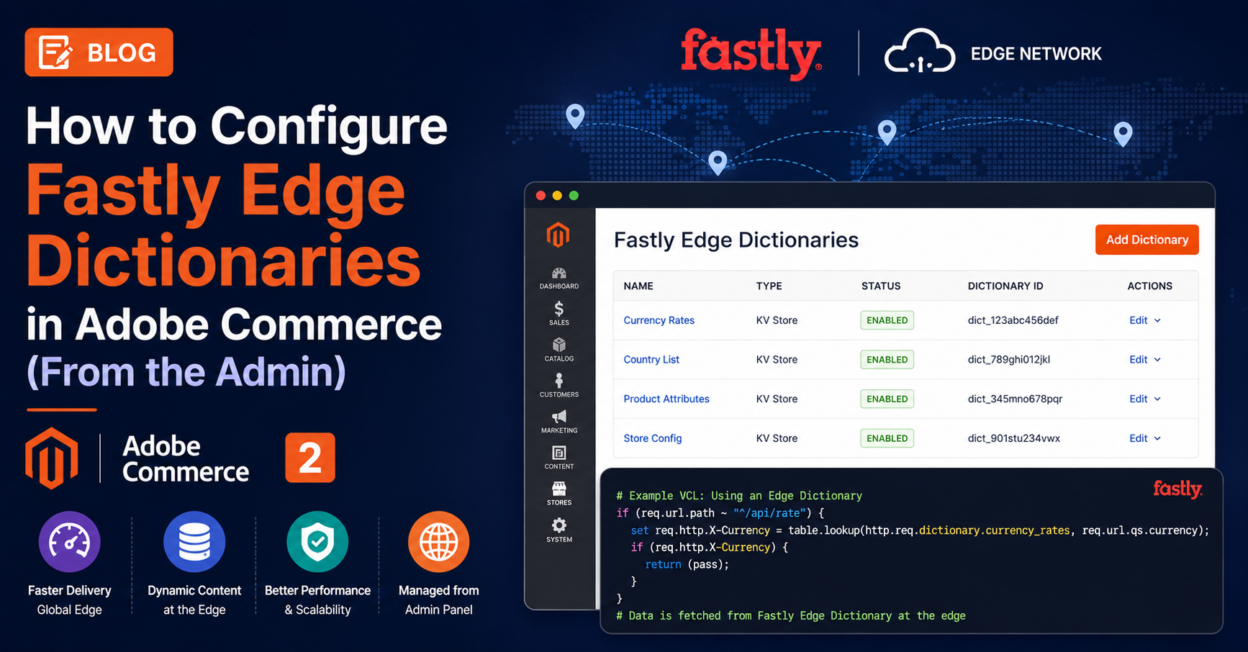
Fastly Edge Dictionaries let you store key-value data directly at Fastly’s edge network and reference it from custom VCL snippets — without touching your Magento backend at all. Since lookups happen at the CDN level, they’re extremely fast and are commonly used for things like:
- Redirecting specific URL paths to a different backend (e.g., a WordPress blog)
- Country/locale-based routing
- Feature flags or maintenance toggles at the edge
- Large redirect maps (thousands of rows) without slowing down Magento
This guide walks through creating and managing Edge Dictionaries directly from the Adobe Commerce Admin.
Prerequisites
Before configuring Edge Dictionaries, make sure:
- Your environment is already configured to use the Fastly CDN (Fastly caching must be working with the default configuration first).
- You’re running the latest version of the Fastly CDN module for Magento 2.
- You have Admin credentials with access to Stores > Settings > Configuration.
- If you’re on Staging/Production (Cloud infrastructure), test changes on Staging first before pushing to Production.
Step 1: Navigate to the Fastly Configuration Section
Log in to the Adobe Commerce Admin and go to:
Stores > Settings > Configuration > Advanced > System > Full Page Cache > Fastly Configuration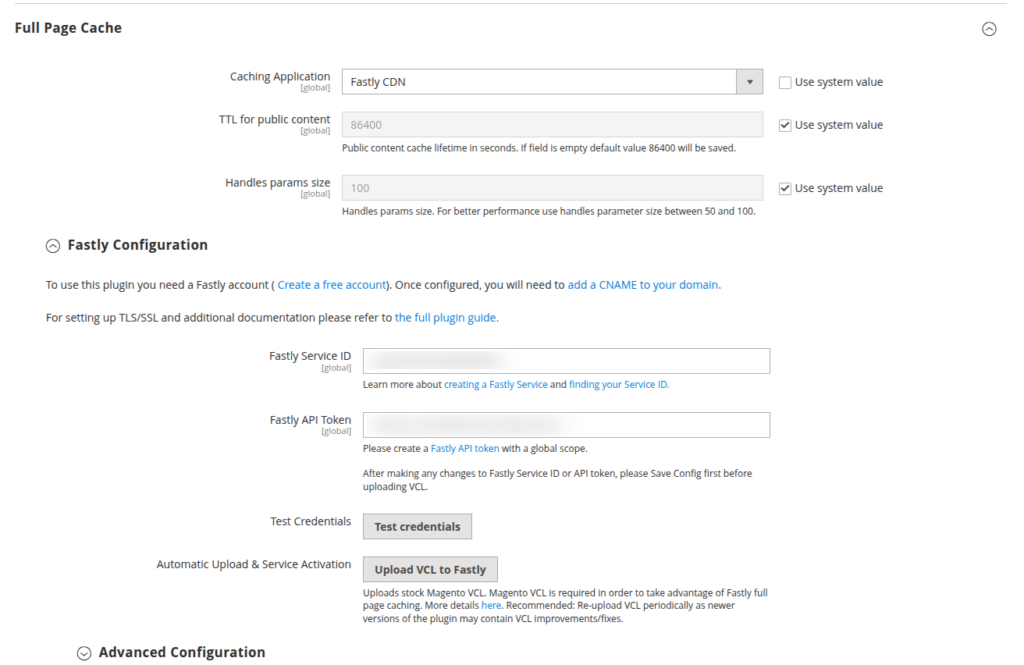
This is the central hub for all Fastly-related settings, including caching behavior, custom VCL snippets, Edge ACLs, and Edge Dictionaries.
Step 2: Open the Edge Dictionaries Section
Within the Fastly Configuration page, expand the Edge Dictionaries section. Here you’ll see a list of any dictionaries that already exist, along with their Dictionary ID and Sync Mode.
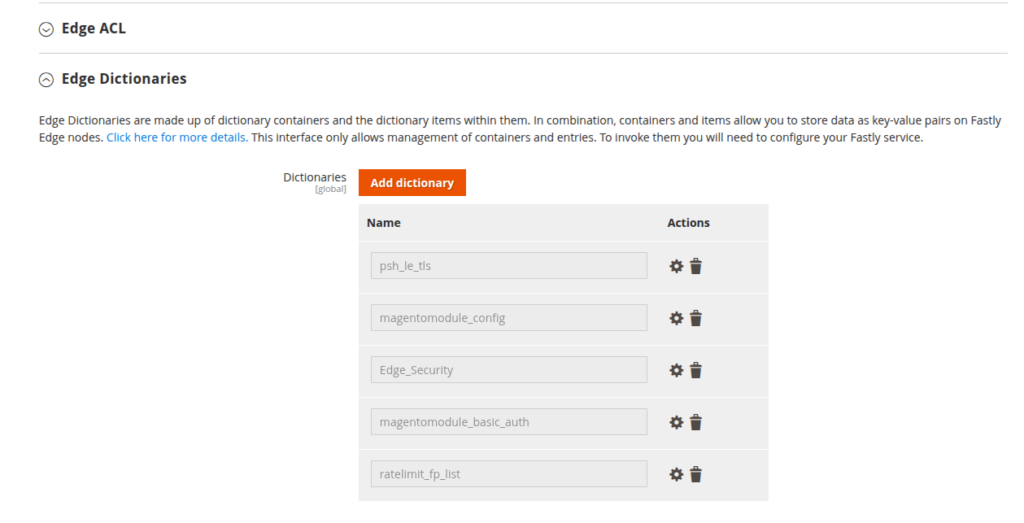
From here you have two options:
- Add Dictionary — create a new dictionary manually, one entry at a time.
- Import — bulk-upload a large list of key-value pairs from a JSON file (ideal when you have hundreds or thousands of rows).
Step 3: Create a New Dictionary
Click Add Dictionary. You’ll be asked to provide:
- Name — a unique identifier used to reference this dictionary in your custom VCL code (e.g.,
geo_country_redirectsorwordpress_urls). - Sync Mode — typically set to Manual, meaning changes are pushed to Fastly’s edge only when you explicitly save/upload.
- Write-only dictionary (optional) — if checked, values won’t be displayed back in the Admin UI once saved (useful for sensitive data).
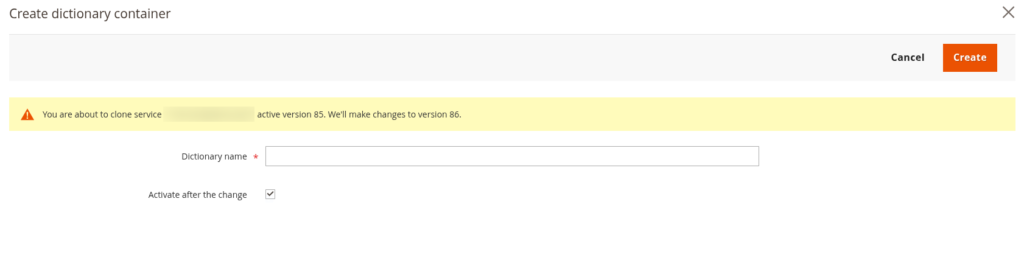
Click Save Dictionary once you’ve named it. The dictionary itself is now created — but it’s still empty.
Step 4: Add Key-Value Items to the Dictionary
Open the dictionary you just created to add its contents. Each row is a simple key → value pair. For example, if you’re routing certain URL paths to different backends:
| Key | Value |
|---|---|
/de/ | germany.example.com |
/fr/ | france.example.com |
/blog/ | wordpress-backend.example.com |
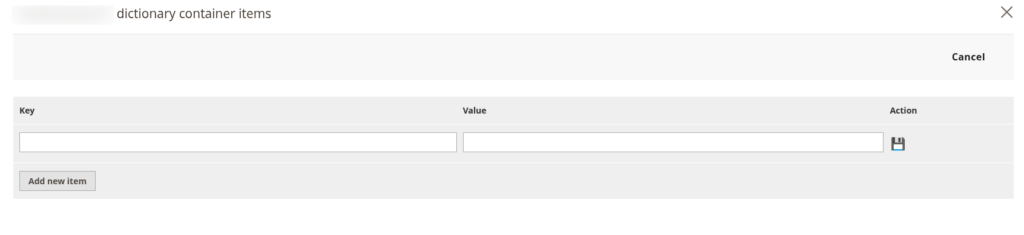
Click + Add Item to add more rows, fill in the key and value, then click Save Config to persist the dictionary contents.
Step 5: Bulk Import (For Large Dictionaries)
If you need to add a large number of entries (hundreds or thousands of redirects, for example), manual entry isn’t practical. Instead:
- Prepare a JSON file containing your key-value data.
- Go to Fastly Configuration > Tools > Import.
- Choose your JSON file and click Import.
- Magento will show you a preview of the parsed structure before committing the data.
This is the recommended approach any time you’re populating a dictionary with more than a handful of rows.
Step 6: Reference the Dictionary in Custom VCL
Creating the dictionary alone doesn’t do anything — you need custom VCL code that actually looks up values from it. This is typically done in a Custom VCL Snippet (also under Fastly Configuration), using Fastly’s table.lookup() function to check the dictionary at request time. For example, a snippet might check if the incoming request path exists as a key in your dictionary, and if so, reroute the request to the corresponding backend value.
Custom VCL snippets and dictionaries work together:
- The dictionary stores your data (paths, flags, redirect targets).
- The VCL snippet contains the logic that reads from the dictionary and acts on it.
Step 7: Save, Upload, and Test
After configuring your dictionary and VCL snippet:
- Click Save Config at the top of the Fastly Configuration page.
- Click Upload VCL to Fastly to push your changes live to the edge.
- Test on Staging first — verify the behavior (e.g., that a specific path now routes correctly) before promoting the change to Production.
Common Use Cases for Edge Dictionaries
- Multi-backend routing — send certain paths (like
/blog/) to a separate CMS such as WordPress. - Country/locale redirects — map country codes to specific store URLs.
- Large-scale redirect management — thousands of old-URL-to-new-URL mappings without adding load to Magento.
- Feature flags at the edge — toggle edge behavior without deploying code.
Conclusion
Fastly Edge Dictionaries give Adobe Commerce merchants a powerful way to manage routing and data lookups directly at the CDN layer — all configurable from the Admin, without writing custom Magento code. Combined with custom VCL snippets, they’re a key tool for advanced caching, routing, and personalization scenarios at scale.