Introduction
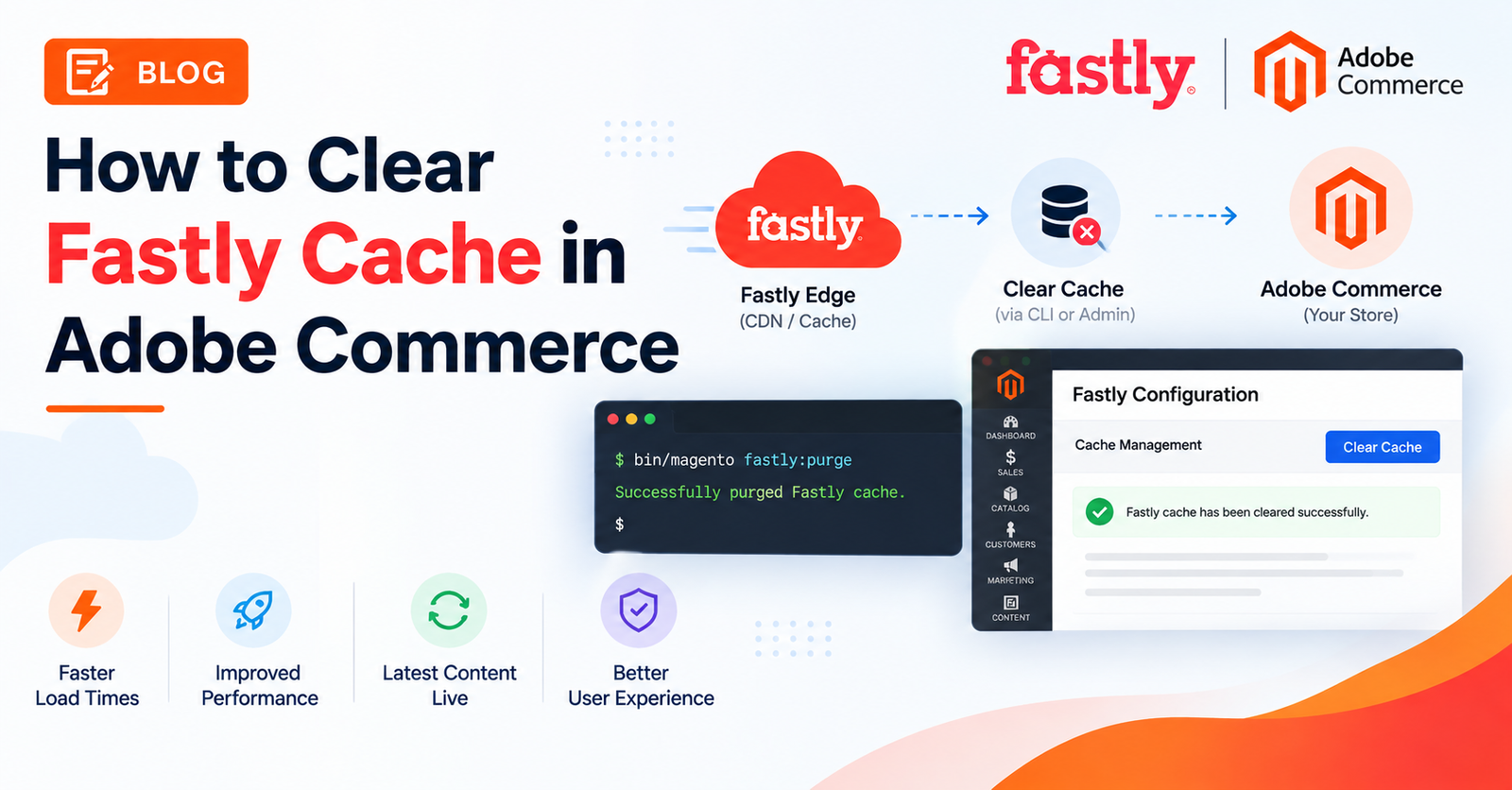
If you’re running Adobe Commerce on Cloud infrastructure (or on-premises with Fastly configured), you’re using Fastly as your CDN and full-page cache layer instead of Varnish. Because Fastly caches pages at the edge — often across dozens of global points of presence — a normal Magento cache flush isn’t always enough to make your latest changes visible. This guide covers every way to clear the Fastly cache in Adobe Commerce: from the Admin, via CLI, and programmatically in custom code.
Note: Fastly applies to Adobe Commerce on Cloud infrastructure and certain on-premises projects configured with Fastly. If your project uses Varnish instead, the purge mechanism is different — Magento’s standard cache flush already purges Varnish automatically.
Why You Might Need to Clear the Fastly Cache
- You updated a CMS page, static block, or category and the change isn’t showing on the storefront.
- You deployed code or configuration changes and need the edge cache to reflect them immediately.
- You’re troubleshooting a caching issue and need a clean slate to test against.
- A custom extension writes data that isn’t automatically invalidated by Magento’s built-in cache events.
Method 1: Clear Fastly Cache from the Admin
The most common and safest way to purge Fastly is directly from the Adobe Commerce Admin.
Step 1: Navigate to Cache Management
System > Tools > Cache ManagementAt the top of this page you’ll see two buttons: Flush Cache Storage and Flush Magento Cache. These clear Magento’s internal cache types (and dispatch the cache-clean events Fastly listens for), but for explicit, targeted edge purges, scroll down to the Additional Cache Management section instead.
Step 2: Use the Additional Cache Management Options
The Additional Cache Management section at the bottom of the Cache Management page is where the Fastly-specific purge tools live:
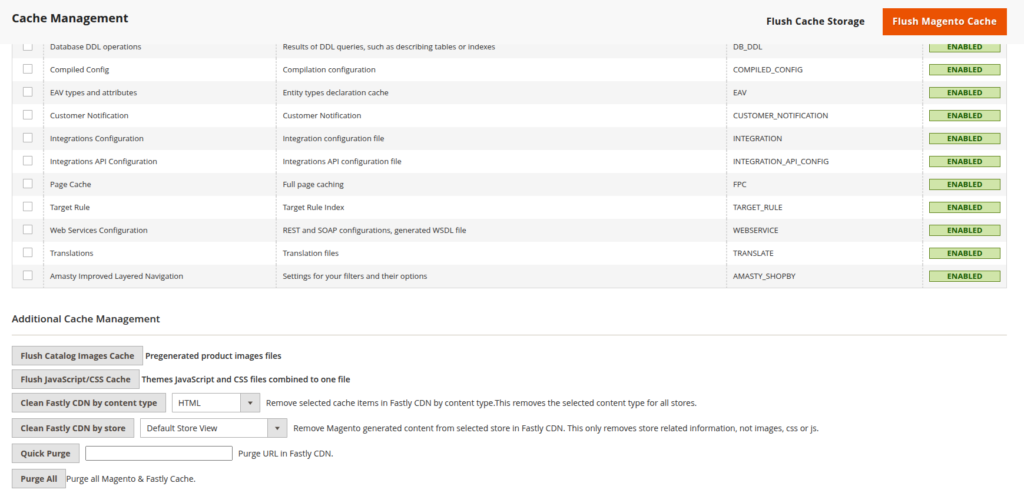
- Flush Catalog Images Cache — clears pregenerated product image files.
- Flush JavaScript/CSS Cache — clears the combined theme JS/CSS files.
- Clean Fastly CDN by content type — removes cached items from the Fastly CDN for a selected content type (e.g., HTML), across all stores.
- Clean Fastly CDN by store — removes Magento-generated content from the Fastly CDN for a selected store view. This only clears store-related content, not images, CSS, or JS.
- Quick Purge — enter a specific URL in the text field and purge just that URL from the Fastly CDN.
- Purge All — purges all Magento cache and all Fastly cache in one action.
Step 3: Confirm the Purge
For Clean Fastly CDN by content type or by store, select the relevant option from the dropdown first, then click the button. For Quick Purge, paste the URL into the field, then click Quick Purge. For a full reset, click Purge All. Fastly purge operations can take a short time to fully propagate across all edge nodes, so don’t be alarmed if you don’t see the effect instantly.
Method 2: Clear Fastly Cache via CLI (Magento Commands)
From the command line, the standard Magento cache flush will also trigger Fastly purge events through Magento’s cache management layer:
bash
php bin/magento cache:flushTo target specific cache types instead of flushing everything:
bash
php bin/magento cache:clean full_pageThese commands clear Magento’s internal cache and dispatch the same cache-clean events that the Fastly module listens for — so in most standard setups, running cache:flush is sufficient to also purge the Fastly edge cache.
Method 3: Purge Fastly Directly via the Fastly CLI or API
For advanced scenarios — for example, purging from a CI/CD pipeline, or purging content that Magento doesn’t know about — you can interact with Fastly directly using its own CLI or API, independent of Magento.
Using the Fastly CLI:
bash
# Purge everything on the service
fastly service purge --all --service-id=<your-service-id>

# Purge a single URL
fastly service purge --url=https://www.example.com/catalog/product/view/id/123

# Purge by surrogate key (tag)
fastly service purge --key=<surrogate-key> --service-id=<your-service-id>
This approach requires a valid Fastly API token and your Fastly Service ID, both of which are available from the Fastly Configuration section in the Adobe Commerce Admin (if Fastly is enabled for your environment).
Method 4: Trigger a Fastly-Compatible Purge from Custom Code
If you’re building a custom module that modifies data Magento doesn’t automatically invalidate, you can trigger a proper cache flush — compatible with Fastly — directly from PHP. Fastly listens for the adminhtml_cache_flush_all event to know when to send a purge request, so your custom cache-clearing code should dispatch that event alongside the standard cache manager flush:
<?php

namespace Vendor\Module\Model;

use Magento\Framework\App\Cache\Manager;
use Magento\Framework\Event\ManagerInterface;

class CacheFlusher
{
    protected Manager $cacheManager;
    protected ManagerInterface $eventManager;

    public function __construct(
        Manager $cacheManager,
        ManagerInterface $eventManager
    ) {
        $this->cacheManager = $cacheManager;
        $this->eventManager = $eventManager;
    }

    public function cacheFlush(): void
    {
        $availableTypes = $this->cacheManager->getAvailableTypes();
        $this->eventManager->dispatch('adminhtml_cache_flush_all');
        $this->cacheManager->flush($availableTypes);
    }
}
This pattern ensures that any custom logic you write to clear cache will also properly notify Fastly to purge its edge cache, rather than only clearing Magento’s local cache.
Troubleshooting Fastly Purge Issues
If a purge doesn’t seem to take effect, check the following:
- Invalid Fastly credentials — if your Fastly API token or Service ID configuration is incorrect, purge requests will fail silently or return an error. Re-verify these in the Fastly Configuration section of the Admin.
- Bulk operation timeouts — if you’re purging a large number of URLs at once and hitting timeouts, you can extend the Fastly timeout setting for the Admin.
- Cookies blocking caching — if pages aren’t caching at all (separate from a purge issue), check whether a third-party extension is interfering with the headers Fastly’s default VCL expects.
- VCL not uploaded — if you’ve made changes to custom VCL snippets, remember that Save Config alone does not push changes live. You must also click Upload to send your updated VCL to Fastly.
Best Practices
- Prefer targeted purges (Quick Purge, Clean Fastly CDN by content type, or by store) over Purge All whenever possible, especially on production — a full purge temporarily drops your cache hit ratio and spikes origin traffic while the cache rebuilds.
- Always test significant VCL or cache-configuration changes on Staging before pushing to Production.
- If you’re writing custom code that modifies cacheable content, make sure it dispatches
adminhtml_cache_flush_all(or integrates with Magento’s standard cache invalidation events) so Fastly stays in sync automatically.
Related Reading
- Related guide: How to Configure Fastly Edge Dictionaries in Adobe Commerce — another Fastly Configuration feature worth knowing if you’re managing edge behavior for your store.
- Official reference: Fastly’s own guide to Purging covers purge-all, soft purges, and surrogate-key purges in full technical detail.
Conclusion
Clearing the Fastly cache in Adobe Commerce can be as simple as clicking Purge All, or as targeted as running a Quick Purge on a single URL — depending on how precise you need to be. For day-to-day admin use, the Additional Cache Management section on the Cache Management page covers almost every scenario; for automation or custom extensions, the Fastly CLI/API and the adminhtml_cache_flush_all event give you full programmatic control.