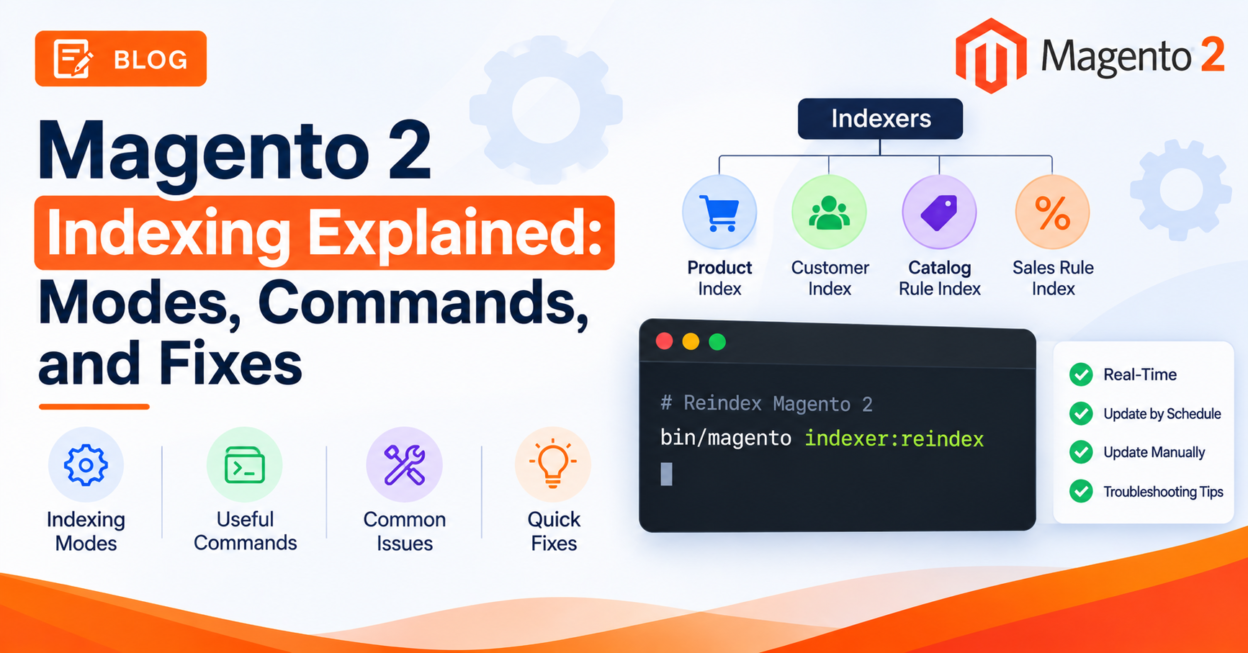
Introduction
Few things confuse new Magento developers like indexing. A product is saved but doesn’t show up in the category, a price change takes ten minutes to appear, or Index Management is full of “Reindex Required” warnings. This Magento 2 indexing explained guide walks through what indexers do, the two update modes, the CLI commands you’ll use every week, and the fixes for the most common problems.
Applies to: Adobe Commerce (Cloud and on-premises) and Magento Open Source. Commands are verified against Adobe’s current documentation. Where behavior differs by version, we call it out.
What Indexing Does
Raw catalog data is stored in a form that’s good for editing, not for fast reading. Indexers take that data (products, prices, stock, category assignments, search content) and rebuild it into structures the storefront can read quickly, instead of calculating everything on every page request.
That means two things follow from how indexing works:
- When source data changes, the matching index has to be updated before shoppers see the change.
- When that update happens is controlled by the indexer’s mode, which is the single most important indexing setting you’ll touch.
Step 1: See Which Indexers You Have and What State They’re In
In the Admin: go to System > Tools > Index Management. Each indexer shows its current mode, schedule status, and a Reindex Required flag when a change needs reindexing but couldn’t be applied automatically.
From the CLI (run all Magento CLI commands as the file system owner):
# List every indexer on this installation
bin/magento indexer:info

# Show status for all indexers, or for specific ones
bin/magento indexer:status
bin/magento indexer:status catalog_product_price catalogsearch_fulltext
indexer:status returns a table like this (values here are illustrative):
| ID                     | Title          | Status | Update On | Schedule Status       | Schedule Updated    |
| catalog_product_price  | Product Price  | Ready  | Schedule  | idle (0 in backlog)   | 2026-10-14 08:00:54 |
| catalogsearch_fulltext | Catalog Search | Ready  | Schedule  | idle (12 in backlog)  | 2026-10-14 08:01:02 |
The Schedule Status column is useful: it shows whether the scheduler is idle and how many changes are waiting in the backlog.
The indexers you’ll see most
The exact list varies by edition, version, and installed modules, so treat indexer:info as the source of truth. These are the ones that drive most storefront symptoms:
| Indexer ID | Title | What it feeds |
|---|---|---|
catalog_category_product | Category Products | Which products appear in which categories |
catalog_product_category | Product Categories | The reverse mapping, product to categories |
catalog_product_price | Product Price | Final prices, including price-rule results |
catalog_product_attribute | Product EAV | Product attribute data used for filtering |
cataloginventory_stock | Stock | Stock status |
catalogrule_rule / catalogrule_product | Catalog Rule | Catalog price rules applied to products |
catalogsearch_fulltext | Catalog Search | Search results |
customer_grid | Customer Grid | The customer grid in the Admin |
A handy rule of thumb: match the symptom to the indexer. Wrong or stale prices point at Product Price or the catalog rule indexers; missing products in a category point at the category indexers; stale search results point at Catalog Search.
Step 2: Choose the Right Indexer Mode
Adobe Commerce has two modes:
Update on Save (realtime) | Update by Schedule (schedule) | |
|---|---|---|
| When the index updates | Immediately when data is saved | In the background, via cron |
| How it works | Reindex starts on the save action | Changes are recorded, and cron reindexes when there’s a backlog |
| Storefront freshness | Always current | Current after the next cron run |
| Load profile | Reindex cost lands on every save | Work is batched and spread out |
Adobe’s guidance is to set indexers to Update on Schedule for large sites and for sites with frequent updates and heavy traffic. The reason is that frequent saves, imports, and exports under Update on Save trigger constant reindexing, which degrades database performance and can make reindexing take much longer.
Two related notes from Adobe’s documentation:
- If multiple Admin users edit objects that trigger automatic reindexing, Adobe recommends running all indexers on schedule. On large or multi-store installations, category and product indexers are the first candidates, ideally reindexed during off-peak hours.
- For indexers that use table switching, such as Product Price and the Catalog Rule indexers, keep them in Update by Schedule. Table switching lets customers browse normally during a full reindex, but with Update on Save, changes made during a full reindex could be lost.
Version note: the Customer Grid indexer
- Before 2.4.8: Customer Grid supports Update on Save only.
- 2.4.8 and later: it supports both modes and defaults to Update by Schedule.
Step 3: Switch Indexer Modes
Before you switch: Adobe recommends putting the site in maintenance mode and disabling cron jobs first, to avoid database locks.
bin/magento maintenance:enable
# Pause cron (on Cloud, follow Adobe's documented way to disable cron jobs)

# Show current modes
bin/magento indexer:show-mode

# Switch everything to Update by Schedule
bin/magento indexer:set-mode schedule

# Or switch specific indexers
bin/magento indexer:set-mode schedule catalog_category_product catalog_product_category

# Switch back to Update on Save
bin/magento indexer:set-mode realtime catalog_category_product

# Re-enable cron, then
bin/magento maintenance:disable
You can also do this from the Admin: in Index Management, select the indexers, set Actions to Update on Save or Update by Schedule, and submit.
How schedule mode works under the hood
Switching to schedule adds database triggers that record changes, and switching to realtime removes them. If triggers are missing while an indexer is set to schedule, Adobe’s fix is simple: set the indexer to realtime, then back to schedule. That resets the triggers.
Schedule mode needs cron
indexer:reindex runs a one-time reindex. To keep indexes current in Update by Schedule mode, cron must be configured and running. The cron job doesn’t reindex on every run; it only reindexes when there are new entries in the indexer change logs.
Step 4: Reindex
From the Admin: in Index Management, select the indexers marked Reindex Required and use the available action.
From the CLI:
# Reindex everything (can take a long time on large stores)
bin/magento indexer:reindex

# Reindex specific indexers
bin/magento indexer:reindex catalog_product_price catalogsearch_fulltext
Reindexing all indexers can take a long time for stores with many products, customers, categories, and promotional rules, so for targeted fixes, name the indexer you need instead of rebuilding everything.
Step 5: Speed Up Large Reindexes with Parallel Processing
Some indexers are scoped and multi-threaded, so they can reindex in parallel by dimension, such as store view, website, or customer group. Adobe lists these as parallelizable:
- Catalog Search Fulltext: by store view
- Category Product: by store view
- Catalog Price: by website and customer group
- Catalog Permissions: by customer group (Adobe Commerce)
Parallelization for Catalog Search Fulltext and Category Product is enabled by default. To use it you need PHP Process Control (pcntl) enabled, then set the number of threads with an environment variable:
MAGE_INDEXER_THREADS_COUNT=3 php -f bin/magento indexer:reindex catalogsearch_fulltextFor the product price indexer, you opt in by choosing a dimensions mode: none (default), website, customer_group, or website_and_customer_group.
# Check the current dimensions mode
bin/magento indexer:show-dimensions-mode

# Split the price index by website
bin/magento indexer:set-dimensions-mode catalog_product_price website
Changing the dimensions mode changes how price index data is stored, so test it on staging with your real catalog size before applying it to production.
Step 6: Pause Indexers During Imports and Maintenance (2.4.7+)
Adobe Commerce 2.4.7 introduced indexer:set-status, which lets you change an indexer’s operational status, handy during big imports or maintenance work.
# Suspend automatic cron-triggered updates for specific indexers
bin/magento indexer:set-status suspended catalog_category_product catalog_product_category
The available statuses are:
invalid: marks indexers as out of date, so they’re reindexed on the next cron run unless suspended.suspended: pauses automatic cron-triggered updates in both realtime and schedule modes. Reindexing and materialized view updates are skipped for suspended indexers and any that share their index.valid: marks data as up to date.
Two cautions from Adobe: indexer:reindex still reindexes suspended indexers, which makes it the tool for manual updates while automatic ones are paused; and setting an indexer back to valid is risky if unindexed data has built up, so make sure everything is actually indexed first.
Step 7: Fix Common Indexing Problems
| Symptom | Likely cause | What to do |
|---|---|---|
| Admin saves and imports are slow, and database load spikes | Indexers in Update on Save on a large or busy store | Move indexers to Update by Schedule (Adobe’s recommended practice for large, high-traffic sites). |
| “Reindex Required” lingers, or changes take far too long to appear | Cron isn’t processing the backlog | Run indexer:status and watch the backlog and Schedule Updated values. If the backlog keeps growing and the timestamp doesn’t move, check that cron is running. Meanwhile, run indexer:reindex for the affected indexer. |
| Scheduled changes never apply | Missing database triggers | Set the indexer to realtime, then back to schedule to reset the triggers. |
| An indexer appears stuck in a processing state | A reindex process died or was interrupted | First confirm no reindex is genuinely still running. Then use indexer:reset <indexer> to invalidate it and run indexer:reindex <indexer>. (This is common practice, not a step from Adobe’s docs, so use it on staging first if you can.) |
| Full reindex takes too long | Single-threaded reindex on a large catalog | Use MAGE_INDEXER_THREADS_COUNT for parallelizable indexers, and reindex specific indexers off-peak. |
| Customer Grid doesn’t update on schedule | Running a version before 2.4.8 | Before 2.4.8, Customer Grid only supports Update on Save: bin/magento indexer:set-mode realtime customer_grid. |
| Data seems missing after changes made during a full price reindex | Price or Catalog Rule indexer in Update on Save | Keep these indexers in Update by Schedule. |
If a reindexed change still doesn’t appear on the storefront, the page may simply be cached. See our guide to clearing the Fastly cache in Adobe Commerce if your store uses Fastly.
Command Cheat Sheet
| Command | What it does |
|---|---|
bin/magento indexer:info | Lists all indexers |
bin/magento indexer:status [indexer] | Shows status, mode, and backlog |
bin/magento indexer:show-mode [indexer] | Shows Update on Save or Update by Schedule |
bin/magento indexer:set-mode {realtime|schedule} [indexer] | Changes the mode |
bin/magento indexer:reindex [indexer] | Runs a one-time reindex |
bin/magento indexer:reset [indexer] | Invalidates indexer status |
bin/magento indexer:set-status {invalid|suspended|valid} [indexer] | Changes operational status (2.4.7+) |
bin/magento indexer:show-dimensions-mode | Shows dimensions mode for scoped indexers |
bin/magento indexer:set-dimensions-mode <indexer> <mode> | Sets dimensions mode, for example for price |
Best Practices
- Default to Update by Schedule on production, and verify cron health regularly, since scheduled mode is only as reliable as the cron driving it.
- Switch modes in a maintenance window with cron paused, as Adobe advises.
- Reindex only what you need. Name the indexer rather than rebuilding everything.
- Use parallel reindexing for large catalogs, and test dimensions-mode changes on staging.
- Suspend indexers deliberately during bulk imports, and confirm data is fully indexed before marking anything
valid. - Check
indexer:statusafter deployments and imports, not just when something looks wrong.
Related Reading
- Related guide: How to Clear Fastly Cache in Adobe Commerce covers what to do when reindexed data is correct but the storefront still shows an old cached page.
- Official reference: Adobe’s Manage the indexers documentation is the authoritative reference for every indexer command and option.
Conclusion
Indexing comes down to three decisions: which mode each indexer runs in, how reindexing gets triggered, and how you diagnose it when something goes stale. Run indexers in Update by Schedule on any busy production store, keep cron healthy, learn the handful of indexer: commands in the cheat sheet, and match each storefront symptom to the indexer behind it. With that in place, most “why isn’t my change showing up?” problems become a five-minute check.