Introduction
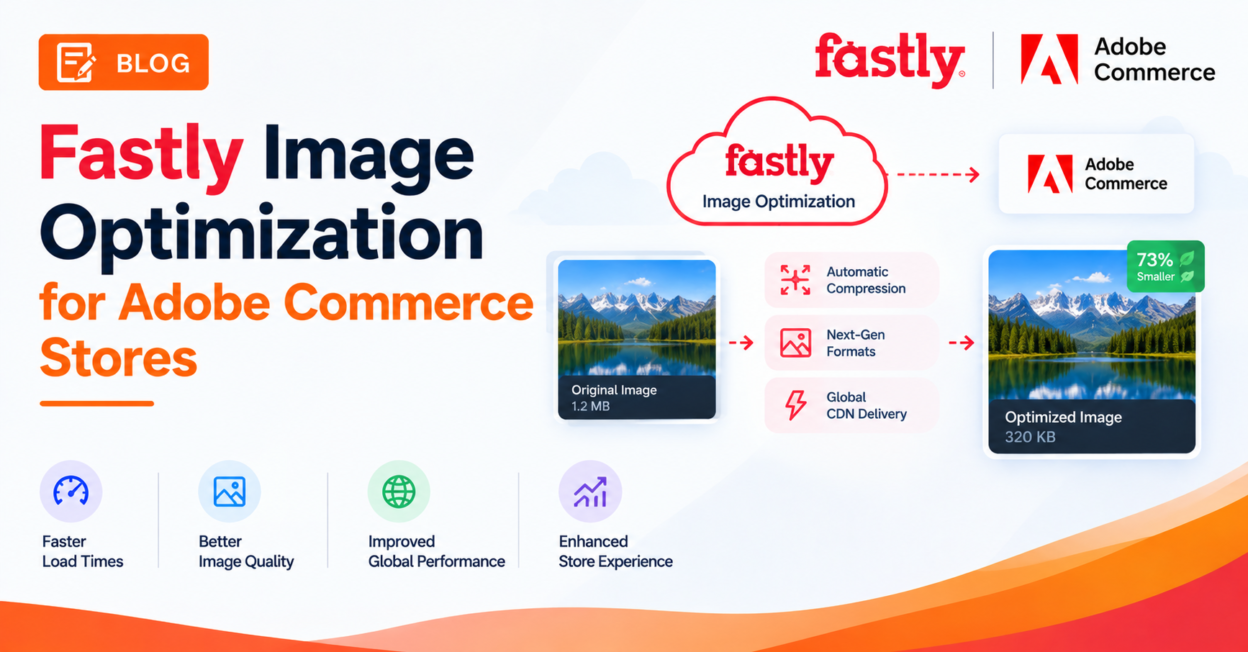
Product images are usually the heaviest assets on an ecommerce page, and serving the wrong size or format to every visitor is a common, easily-fixed performance drag. Fastly Image Optimization (Fastly IO) solves this at the edge: it resizes, reformats, and compresses images in real time as browsers request them — without you needing to pre-generate dozens of image variants or touch your theme’s image markup. This tutorial walks through enabling, configuring, and validating Fastly IO for your Adobe Commerce store.
Scope: Fastly IO applies to Adobe Commerce on Cloud infrastructure (PaaS) and certain on-premises projects configured with Fastly. It builds on top of your existing Fastly CDN and Origin shielding setup.
What Fastly IO Actually Does
Once configured, Fastly IO provides:
- Force lossy conversion — converts lossless formats (PNG, BMP, WebP-lossless) into smaller JPEG/WebP output, typically reducing file size by 60–70%.
- Deep image optimization — offloads Adobe Commerce’s built-in image resizing entirely to Fastly’s edge network.
- Adaptive pixel ratios — serves multiple image resolutions from a single source file via
srcset, so high-DPI screens get sharper images without penalizing standard screens. - Broad format support — PNG, JPEG, GIF, and WebP are all handled automatically.
Prerequisites
Before enabling Fastly IO, make sure:
- You’re running Fastly CDN module version 1.2.62 or later for Adobe Commerce — upgrade first if you’re on an older version.
- Fastly Origin shielding and backend settings are already configured. Fastly IO builds on top of this, so it needs to be in place first (
Stores > Settings > Configuration > Advanced > System > Full Page Cache > Fastly Configuration > Backend settings). - You have Admin access to configure system settings.
Step 1: Enable Fastly IO
- Log in to the Adobe Commerce Admin.
- Navigate to:
Stores > Settings > Configuration > Advanced > System- Expand Full Page Cache, then select Fastly Configuration > Image Optimization.
- In the Fastly IO snippet field, select Enable/Disable.
- Under Default IO config options, select Upload to push the Fastly IO VCL snippet to your Fastly service. This snippet contains the instructions Fastly needs to route image requests through its image optimizer using default settings.
Step 2: Configure the Default IO Settings
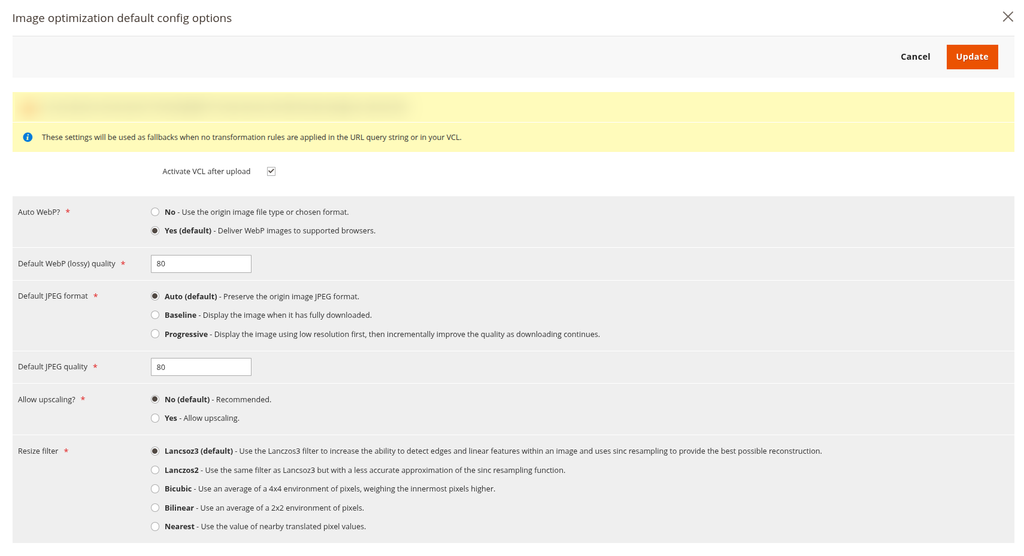
Once the snippet is uploaded, fine-tune the default behavior. From the Fastly Configuration page, select Configure next to Default IO config options to open the Image optimization default config options page.
Show Image
Here’s what each setting controls:
| Setting | Default | What It Does |
|---|---|---|
| Auto WebP? | Yes | Converts images to WebP for browsers that support it. Set to No to keep the original file type instead. |
| Default WebP (lossy) quality | 85 | Compression level (1–100) for lossy WebP output. Lower values mean smaller files but more visible compression artifacts. |
| Default JPEG format controls | Auto | Auto matches the input type; Baseline loads top-to-bottom; Progressive loads as a blurry placeholder that sharpens as it loads. |
| Default JPEG quality | 85 | Compression level (1–100) for JPEG output. |
| Allow upscaling? | No | If Yes, Fastly will enlarge images beyond their original source dimensions to fit a requested size. Generally leave this off to avoid blurry, stretched images. |
| Resize filter | Lanczos3 | The resampling algorithm used when resizing. See the comparison below. |
Choosing a Resize Filter
- Lanczos3 (default) — best overall quality; strong edge detection and detail reconstruction.
- Lanczos2 — similar to Lanczos3 but a less precise approximation; slightly faster.
- Bicubic — naturally sharpens images when scaling down.
- Bilinear — naturally smooths images when scaling up.
- Nearest — preserves hard pixel edges; best for pixel art, not product photography.
For most product catalogs, the default Lanczos3 is the right choice. After reviewing your settings, select Cancel to return to the main Fastly Configuration page (this doesn’t discard your changes — it just returns you to the parent screen).
Step 3: Enable Deep Image Optimization
Deep image optimization is off by default. Enabling it turns off Adobe Commerce’s built-in image resizing entirely and hands that work over to Fastly’s edge service — meaning your origin server no longer spends CPU time generating resized image variants.
- On the Fastly Configuration page, find Enable deep image optimization and set it to Yes.
- Select Save Configuration.
A few important details:
- This only affects product images. CMS images are not resized by this feature.
- Enabling deep optimization adds your theme’s background color to every image, which causes WebP output to switch from lossless to lossy — dropping the alpha channel from PNG images. This generally produces much smaller files, but images relying on transparency (e.g., overlaid on a colored background) can look different once the transparency is replaced.
Here’s what actually changes in the rendered HTML. Before deep image optimization:
<img class="product-image-photo"
     src="https://mystore.com/pub/media/catalog/product/cache/f073.../m/b/product-0.jpg"
     width="240"
     height="300"
     alt="Product Name"/>
After deep image optimization is enabled, Adobe Commerce rewrites the source to point directly at Fastly’s image service, with resize parameters appended as query string arguments:
<img class="product-image-photo"
     src="https://mystore.com/pub/media/catalog/product/m/b/product-0.jpg?width=240&height=300&quality=80&bg-color=255,255,255&fit=bounds"
     width="240"
     height="300"
     alt="Product Name"/>
Notice there’s no longer a pre-generated cache path (/cache/f073.../) — Fastly is generating that exact size on demand at the edge.
Step 4: Enable Adaptive Pixel Ratios
Adaptive pixel ratios let a single source image serve multiple resolutions depending on the visitor’s screen density — essential for sharp images on high-DPI (Retina-class) displays without forcing every visitor to download a larger file.
- After enabling deep image optimization, find Enable adaptive device pixel ratios and set it to Yes.
- In Device pixel ratios, accept the default ratio list, or select the System Input checkbox to customize which ratios are generated. Higher device-pixel-ratio values produce larger images.
- Select Save Configuration.
With this enabled, Adobe Commerce adds a srcset attribute alongside the standard src, so the browser can choose the best-fitting image automatically:
<img class="product-image-photo"
     srcset="https://mystore.com/pub/media/catalog/product/m/b/product-0.jpg?width=240&height=300&quality=80&bg-color=255,255,255&fit=bounds&dpr=2 2x,
             https://mystore.com/pub/media/catalog/product/m/b/product-0.jpg?width=240&height=300&quality=80&bg-color=255,255,255&fit=bounds&dpr=3 3x"
     src="https://mystore.com/pub/media/catalog/product/m/b/product-0.jpg?width=240&height=300&quality=80&bg-color=255,255,255&fit=bounds"
     width="240"
     height="300"
     alt="Product Name"/>
Step 5: Validate Your Configuration
Once everything is saved, confirm Fastly IO is actually working as expected:
- Run page speed tests with Fastly IO enabled and compare them against a baseline taken before enabling it — look specifically at total page weight and Largest Contentful Paint (LCP).
- Inspect image URLs on a product page. If deep image optimization is active, URLs should include
width,height,quality, andbg-colorquery parameters instead of pointing to a pre-generated Magento cache path. - Spot-check transparency-dependent images (logos, badges, images with transparent backgrounds) to confirm the background-color substitution looks correct against your theme.
- Check both desktop and high-DPI mobile views if adaptive pixel ratios are enabled, to confirm sharper images are actually being served on Retina-class screens.
Understanding Force Lossy Conversion
By default, Fastly IO converts lossless formats (PNG, BMP, lossless WebP) into JPEG or lossy WebP output. This is where most of the file-size savings come from — often 60–70% smaller, depending on the quality setting. The tradeoff: transparent backgrounds (the alpha channel) get stripped and replaced with a solid background color, unless deep image optimization is handling that substitution using your theme’s actual background color.
If you turn Auto WebP off, Fastly IO limits itself to converting JPEG images to WebP for compatible browsers only — other formats, like PNG, pass through unchanged.
Troubleshooting
- Images look unexpectedly different after enabling deep optimization — this is almost always the lossless-to-lossy conversion dropping transparency. Check whether the affected images actually need transparency, or whether the background-color substitution needs adjusting in your theme.
- Fastly IO snippet won’t upload — confirm you’re running Fastly module 1.2.62 or later, and that Origin shielding/backend settings are already configured first.
- No visible performance change after enabling — clear your Fastly cache after changing IO settings (see our guide on clearing the Fastly cache) so old, unoptimized responses aren’t still being served from cache.
Best Practices
- Start with the default quality settings (85) and adjust incrementally — most stores don’t need to drop much below 75–80 before visible quality loss becomes noticeable.
- Leave Allow upscaling off unless you have a specific layout that requires enlarging small source images.
- Enable adaptive pixel ratios if a meaningful share of your traffic is on high-DPI mobile devices — check your analytics before assuming this is necessary.
- Always run before/after page speed tests rather than assuming the feature is working — image optimization issues are often visual, not just about load time.
- Purge the Fastly cache after any IO configuration change so your validation tests reflect the new settings, not stale cached responses.
Related Reading
- Related guide: How to Clear Fastly Cache in Adobe Commerce — purge your cache after changing IO settings so you’re testing against fresh output, not stale cached images.
- Official reference: Adobe’s Fastly Image Optimization documentation covers the full configuration reference, including additional detail on adaptive pixel ratios and deep optimization behavior.
Conclusion
Fastly Image Optimization moves one of the most resource-intensive parts of serving a storefront — image resizing and format conversion — off your Adobe Commerce origin and onto Fastly’s edge network. Enabling it is mostly a matter of configuration: upload the IO snippet, tune quality and format settings, turn on deep optimization and adaptive pixel ratios, then validate with real page speed tests. For image-heavy catalogs, it’s one of the highest-leverage performance changes available without touching a single line of theme code.